Xplora Kids’ Smartwatches: Safety, Setup, and Buying Guide for Parents (UK)
Xplora smartwatches are designed to keep children connected with parents and guardians—without handing them a full smartphone. With location sharing, SOS calling, and granular contact controls, they’re a practical middle ground for families who want peace of mind on school days, after-school clubs, and weekend adventures.
Who Xplora Is For
- Primary school children who walk to school, attend clubs, or visit friends.
- Families delaying smartphones but needing essential calling and location functions.
- Parents who value routines like School Mode (class-time restrictions) and bedtime quiet hours.
Key Safety & Convenience Features
- GPS Location & Safe Zones: See the watch’s live location and set geofenced “safe areas.” Get alerts when your child enters or leaves them.
- SOS & Trusted Contacts: Kids can trigger an SOS to predefined contacts. Only approved numbers can call or message the watch (no random callers).
- School Mode: Temporarily locks apps/notifications during class time while keeping essential features available (e.g., SOS).
- 4G Calling & Messaging: Make/receive calls, send quick texts/voice notes (depending on model and plan).
- Activity & Step Goals: Encourage movement with step tracking and challenge goals.
- Camera (on select models): Quick snaps to share with family—parents can manage permissions from the app.
Parental App Controls
Using the companion app, parents can manage contacts, set School Mode hours, enable/disable features, review recent locations, update watch settings, and run software updates. We recommend creating two guardian profiles so both carers can receive alerts.
Connectivity: SIM or eSIM
Xplora watches typically use 4G/LTE with either a physical nano-SIM or eSIM, depending on the model. When shopping in the UK, check:
- Model compatibility: Confirm the watch supports UK/EU bands for your chosen carrier.
- Plan type: Many families choose a low-cost monthly plan with minutes, texts, and data (GPS and app features need data).
- Roaming: If you travel in the EU, verify roaming options and any fair-use data limits.
Privacy & Data Protection Tips
- Use a strong password for your parent account and enable any available 2-step verification.
- Limit the watch to trusted contacts only. Review the list regularly.
- Adjust photo and sharing permissions to your comfort level; teach kids what’s appropriate to share.
- Keep the firmware up to date for the latest security improvements.
How to Set Up an Xplora Watch (Step-by-Step)
- Charge fully before first use (usually ~2–3 hours).
- Insert SIM / activate eSIM per the model’s guide. Confirm mobile data is enabled.
- Pair with the parent app by scanning the watch QR or entering the pairing code.
- Add trusted contacts (parents, grandparents, carers) and set School Mode times.
- Test calling, messaging, and GPS around the house and on a short walk.
- Discuss boundaries with your child: when to call, using SOS responsibly, and keeping the watch charged.
Buying Guide: What to Look For
- Battery life: Look for a full school day + after-school usage; heavier GPS/camera use drains faster.
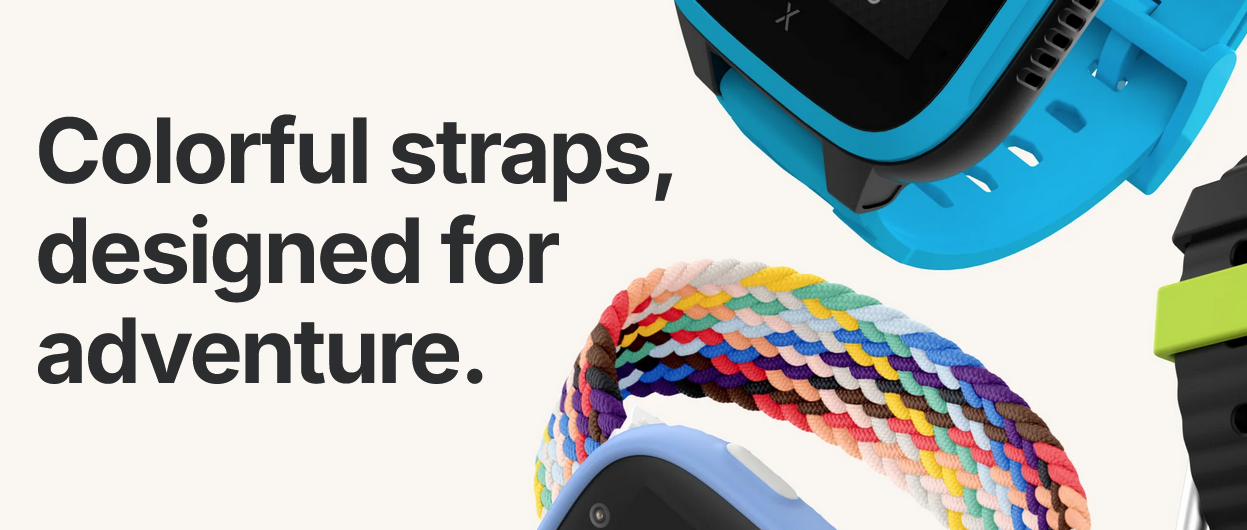
- Durability: A robust case, reinforced strap, and water-resistance help withstand daily bumps and British weather.
- Comfort & fit: Lightweight body and soft strap matter for smaller wrists.
- Camera & media: Decide if you want a camera (fun, but more battery usage) and basic media features.
- School Mode & parental controls: Ensure schedule controls meet your school’s expectations.
- Carrier compatibility & costs: Factor in the monthly plan (minutes/texts/data) and any subscription features.
Everyday Tips for Parents
- Set a charging ritual: e.g., every evening after homework to avoid low-battery mornings.
- Use Safe Zones: Home, school, and club locations reduce unnecessary alerts.
- Review app logs weekly: Spot patterns and fine-tune notifications.
- Keep it positive: Celebrate step goals or punctual check-ins—not just “where are you?” pings.
FAQ
Can my child call anyone?
No—Xplora watches are typically restricted to contacts you approve in the parent app. Unknown numbers are blocked.
Will it work during lessons?
Yes—enable School Mode to limit distractions while keeping essential safety features active.
What if we go on holiday?
Check roaming on your plan. GPS and calling should work where compatible networks are available, but data charges may apply.
Is there a subscription?
You’ll need a mobile plan for the SIM/eSIM. Some models may also offer optional premium features—review the product page before checkout.
Disclosure: Some links in this article are affiliate links. At no extra cost to you, we may earn a commission if you make a purchase through them. We only recommend reputable products and stores we believe offer genuine value.